
Image Import & Conversion
StitchALot Studio has the ability to import PNG, JPG, BMP, GIF, WebP, SVG images. They can be converted to a pattern or used as a reference overlay. This tutorial will cover uploading an image and converting to a pattern. This is from a windows machine but Mac and iPad are very similar.
To begin go to Tools > Upload Image.
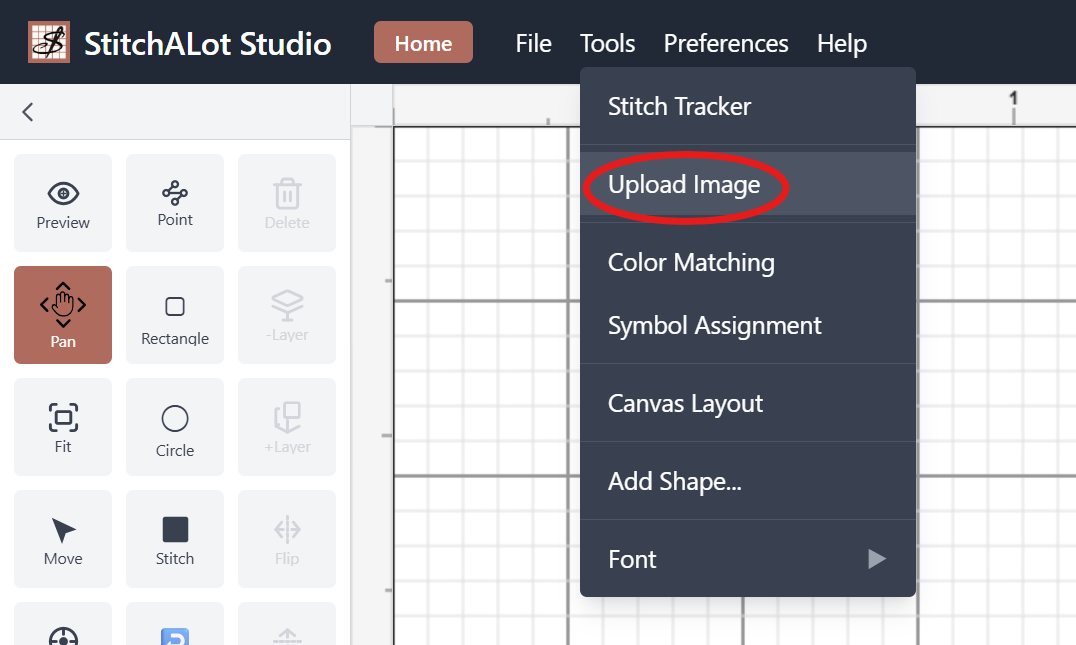
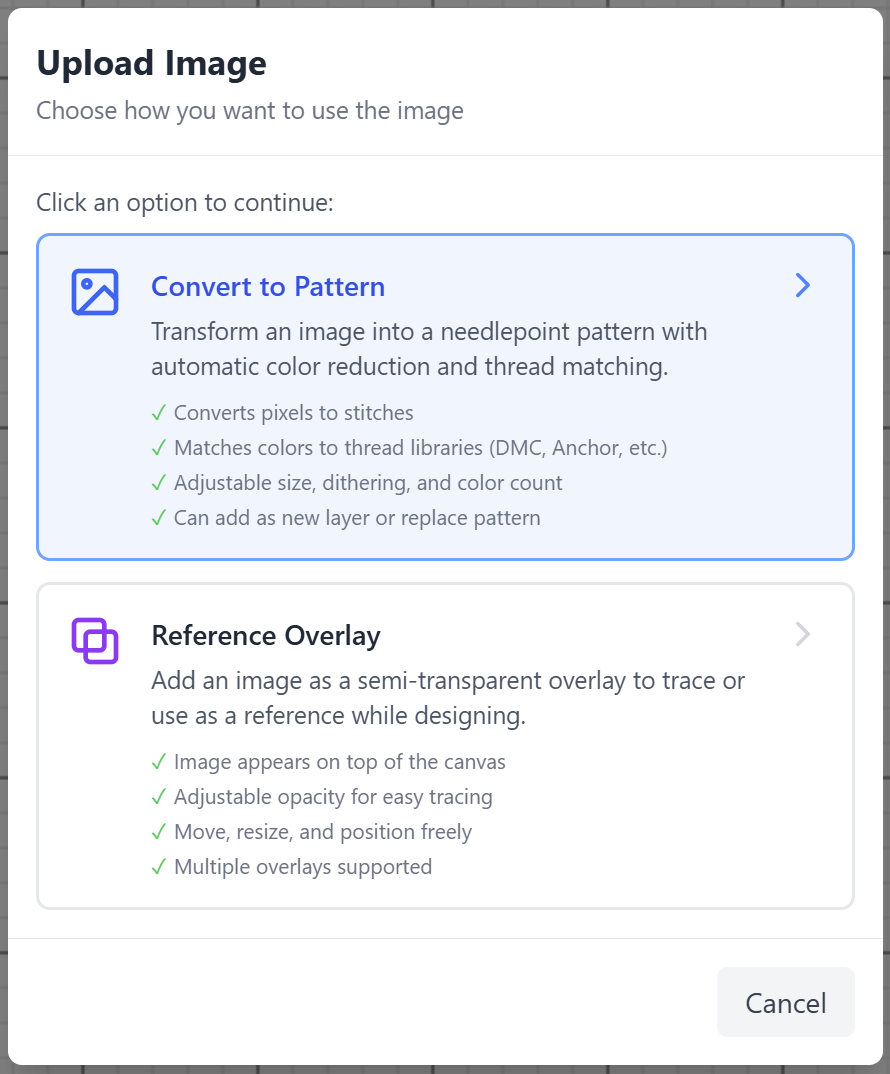
You will have two options Convert to Pattern or Refence Overlay. Choose Convert to Pattern .
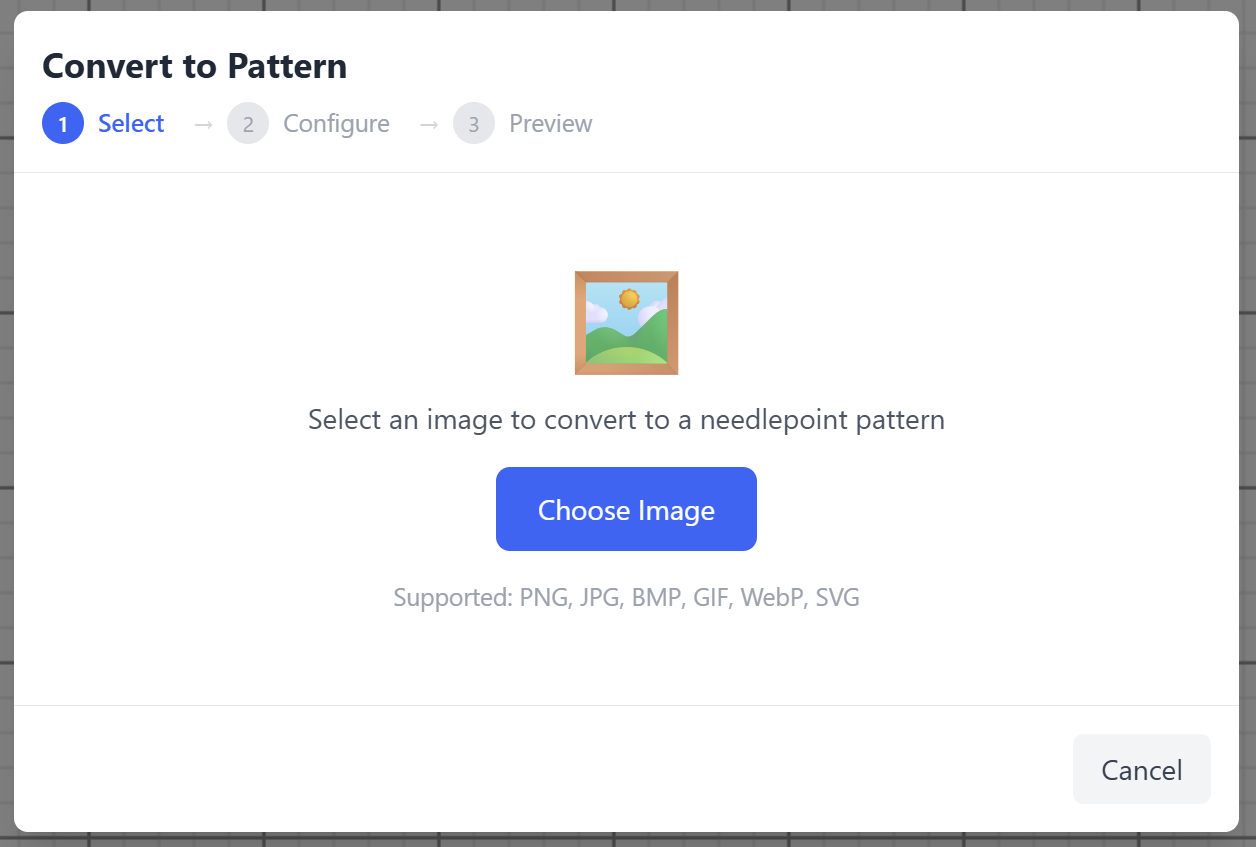
Choose the image to work with by clicking Choose Image.
This is the image we will be importing and is attached below.

After selecting picture there are many options to adjust the impot to satisfy needs.
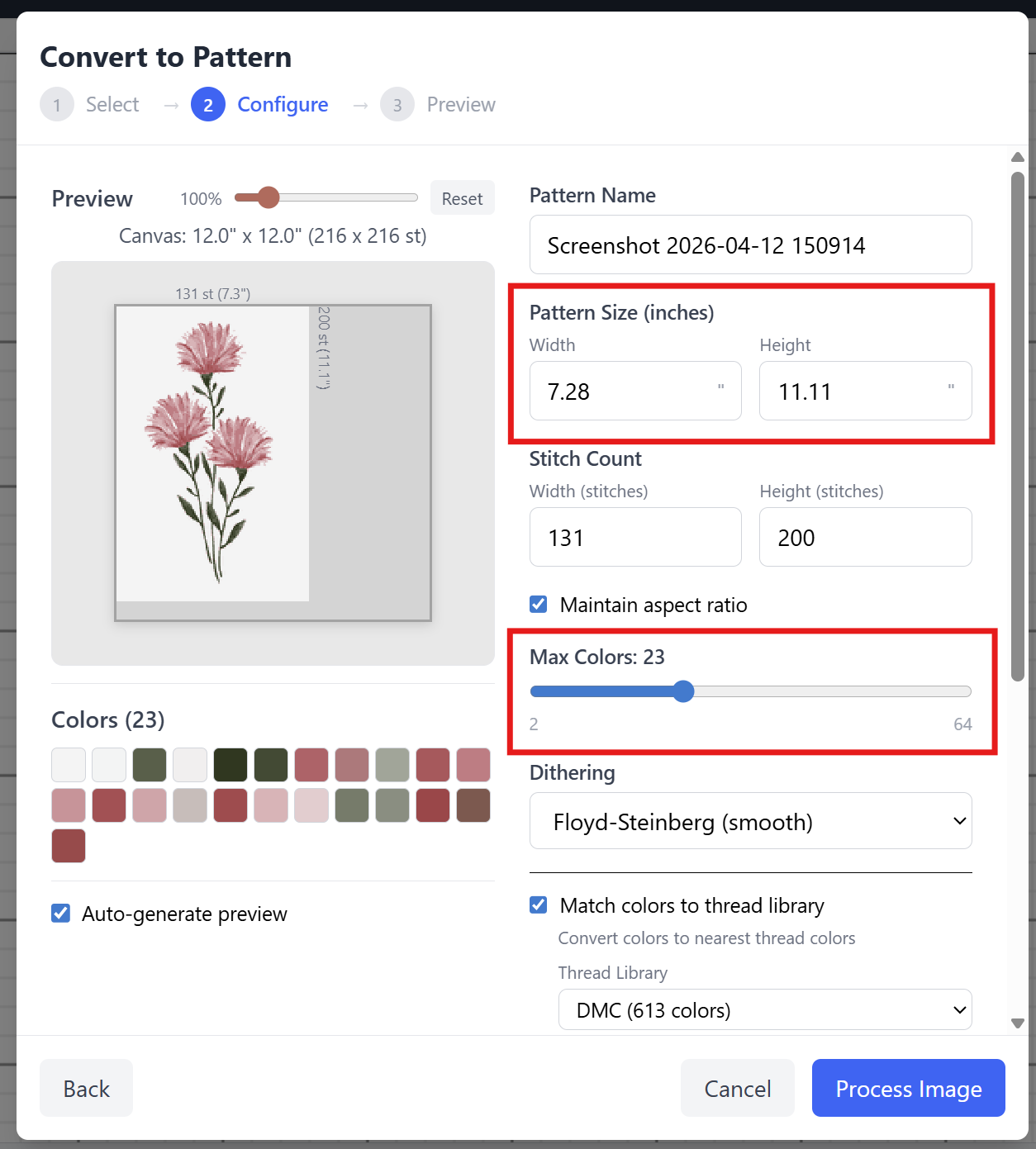
For example change size to inches or stitch count.
Scale while maintaining aspect ratio.
Match colors to different thread libraries.
Max colors allows to keep threads needed to a lower (less details) to higher (more details) but more types of threads.
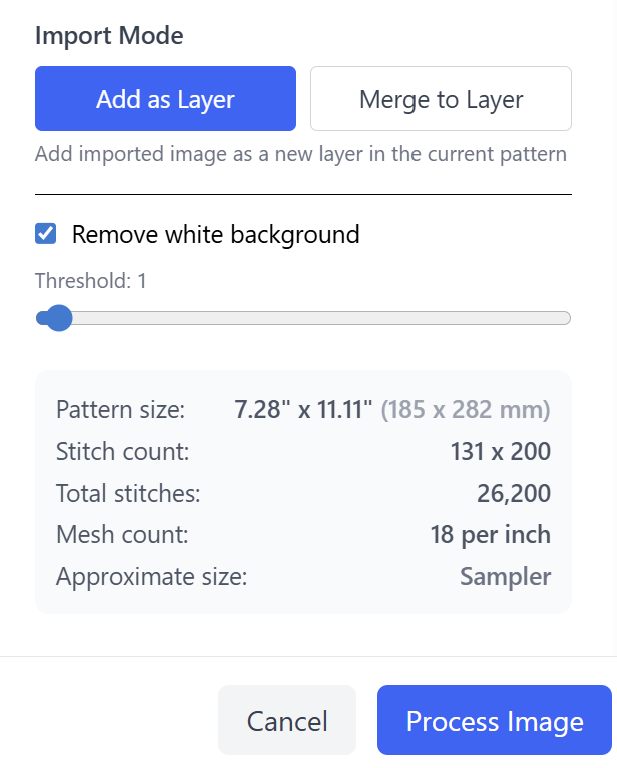
Additionally you can import as a layer (if layers are enabled) or Merge to Layer)
Another useful setting is the remover white background with a threshold slider.
There is a summary section that allows you to review all the settings.
When you have the preview the way you would like click Process Image.
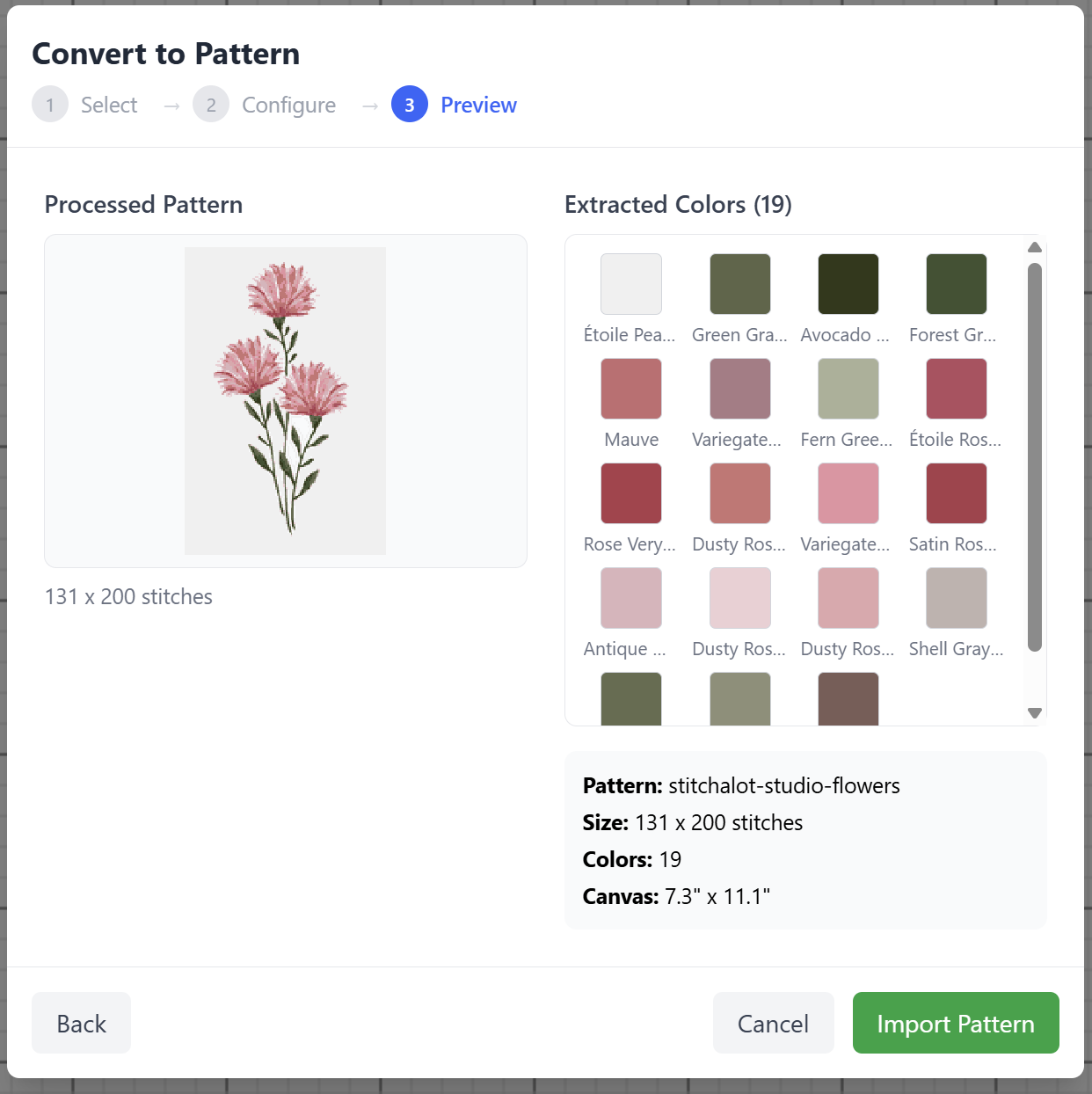
Before you import the image you are given a chance to review and go back to adjust settings or Import Pattern.
Once imported you can scale and move image to the place you would like.
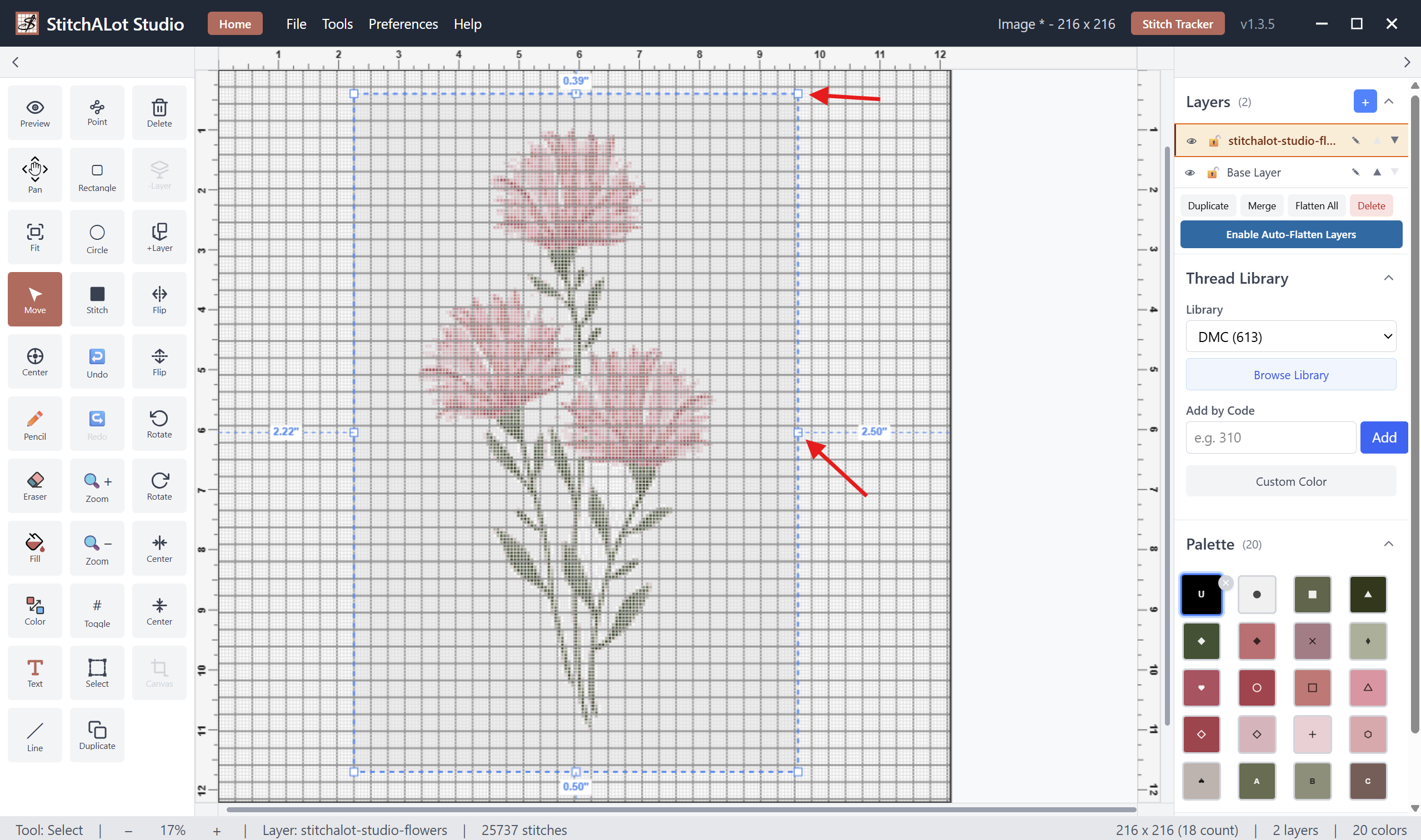
Click outside the image to add to canvas.
Note: If you have layers enabled you can easily go back to move and resize again if desired.

4 Replies
I have a number of patterns in pdf and image form I would love to be able to import as patterns. However when I try to import and convert, it sees the existing grid lines as “colors” or part of the image and if I import as reference image, I often can’t get grid to match up.
would love any suggestions or future plans to help!
I have this in the backlog and has been requested a couple of times. I think it may be close with all the recent PDF work done. I will look at it this coming week.
Before I found stitchalot, I'd been creating patterns in excel. I ended up having AI write a simple program to transalte my xls files into your format. I'm happy to share with anyone who needs it.
I have not heard of this. Can you post a sample of your excel file?
Sign in to reply