1.8.3 StitchALot Studio Release Notes
StitchALot Studio 1.8.3 is here, and it's our biggest update yet! You can now order a printed canvas of any design straight from the app with Buy Canvas, including our new StitchAlign canvases. We've also added the features you've been asking for: saved palettes you can reuse across designs, a new backstitch tool, and copy and paste for stitches. The update also brings cleaner, more compact PDF charts.

• Order printed canvases of your designs from Studio with StitchAlign. It's on by default (turn off Buy Canvas in Preferences to hide it). Use the Buy Canvas button at the top while a design is open, or the cart button on any design in your library, to add designs to one order. Each canvas shows its print size, a 13 or 18 mesh choice and extras such as taped edges or a PDF chart, created by stitchalot.com.

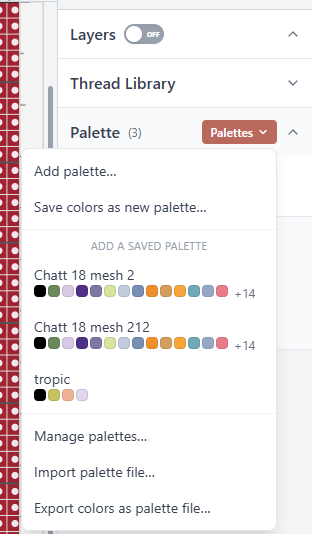
• Color Pallets Save a set of threads and reuse it in any design. The palette panel has a new Palettes menu:
o Add palette… lists every saved palette, with a search box (by palette name or thread, such as 310). Pick one to add its threads to the pattern.
o Save colors as new palette… keeps the open pattern's colors under a name.
o Export colors as palette file… saves the open pattern's colors straight to a palette file, ready to share.
o Pick a saved palette in the menu to add its threads to the pattern you're working on. Threads the pattern already has are skipped, nothing is removed, and one Undo takes it back.
o Manage palettes… lets you rename, delete or export saved palettes. Import palette file… adds a palette someone shared with you.
o The Palettes menu fits in the window and scrolls when you have more saved palettes than fit.
o Add palette… and Manage palettes… show saved palettes in three columns (one column on a phone-sized screen).
• Copy, cut and paste stitches across canvases. Select an area (Select tool), a layer, or a group of layers and press Ctrl+C to copy or Ctrl+X to cut (⌘C / ⌘X on Mac and iPad keyboards), then Ctrl+V (⌘V) to paste — on the same canvas, or into another pattern you open afterwards. A pasted area lands where it was copied from (or in the middle of the screen if that spot is scrolled away) and floats so you can drag, nudge, flip or rotate it; press Enter or click away to place it, Escape to cancel, or Undo to take it back. Pasted layers arrive as new layers above the current one. Threads the other pattern doesn't have are added to its palette automatically. Copy, Cut and Paste buttons are in the toolbar too (show or hide them in Preferences), and on the Mac they're in the Edit menu.
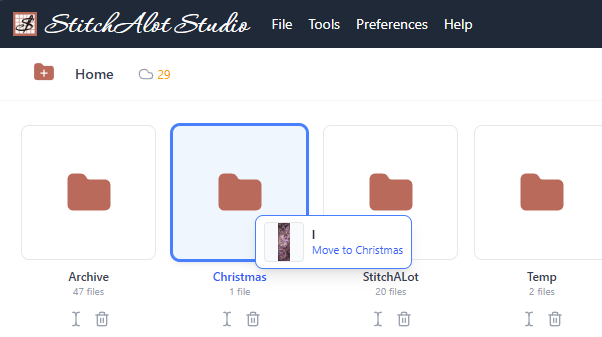
• Drag designs onto folders to move them. On the home screen, drag a design onto a folder to move it there, or onto a folder in the path bar above the grid (including Home) to move it back up. With a mouse, just drag. On iPad and Android, press and hold the design until it lifts, then drag; a quick swipe still scrolls. The list scrolls on its own when you drag near its top or bottom edge, and Esc cancels. If the folder already has a design with that name, the design stays where it is and a message says why. Move to folder… still works as before.
• New Backstitch tool (B). Draw backstitch lines of any length from hole to hole: every point snaps to the nearest grid hole, including the holes along the right and bottom edges. Click or tap each hole in turn; click the last hole again, press Enter or Escape, or pick another tool to finish the line. On iPad and Android a tap places a point and a drag still pans. Lines save with the design, print on PDF charts and export to OXS as backstitch. The tool can be shown or hidden in the toolbar settings, which now include Point Line as well.
• Backstitch colors are in the PDF legend. A color used only for backstitch now gets a legend entry (marked backstitch) and counts in Colors used
• Thread estimates include backstitch, measured from the length of the lines.
• The eraser removes backstitch and point lines on iPad and Android too, and lines erased in one stroke come back with a single Undo.
Other Changes and Fixes:
• New patterns start at 11 x 10 inches (198 x 180 stitches at 18 mesh) instead of 12 x 12, which fits the largest canvas StitchALot StitchAlign prints. You can still pick any size.
• Fixed: on iPad, press-and-hold then drag scrolled the library instead of moving the design. The design now follows your finger to the folder.
• New: File → Export → StitchALot… saves a copy of the open design as a .stitchalot file wherever you choose: a save dialog on Windows and Mac, the share sheet on iPad and Android. Unlike Save As, the design you're working on stays the open file.
• On iPad and Android, the eraser and pencil size box now follows your finger or Apple Pencil. Before, it stayed where the stroke began while erasing or drawing carried on elsewhere.
• The eraser now reaches stitches outside the canvas edge, such as text that sticks out past the edge. Start erasing on the canvas and drag out, or press right on the stitches outside. Pressing empty space outside the canvas still does nothing, and with a finger it still pans. Before, only Select and Delete could remove them.
• Fixed: the Enter: Place | Esc: Cancel hint under a pasted or picked-up selection was half outside its blue box, so Enter: Place was hard to read. The N layers badge on a multi-layer selection had the same problem. Both now sit inside their boxes.
• Fixed: stitches lost their thread when two palette colors were the exact same shade on import. For example, a plain black and DMC 310 Black. Opening or importing such a design kept only the first of the two colors, and the second color's stitches and backstitch were left with no thread. They now use the color that's kept.
• Fixed: an imported thread could reuse a chart symbol that was already taken, so two threads showed the same symbol in the PDF key. It now gets a free symbol.
0 Replies
Sign in to reply